Sunday, 21 September 2014

Sending Email using G-Mail SMTP in Node.js - Mailer and Nodemailer

Sending Email is an important Aspect for applications for notifying users,registering users and Announcement to users.However Email keeps the Application and the User interactive and stay updated for recent changes and notify.Recently i have used G-Mail for sending mails for my client,However this is Easy in PHP,Where in node.js there are two popular library to do this and send mail to your clients pragmatically from node js application.mailer is depreciated in favor of nodemailer.if you need attractive html emails better learn any templating language EJS,JADE to integrate with the email.there are seperate npm for email templates too.

Sending Email using G-Mail SMTP in Node.js - Mailer and Nodemailer


Reference : Download app Zip | mailer | nodemailer

Installation : 

  • npm install nodemailer -g
  • npm install mailer -g
these both node js modules are popular one to send mails programaticaly.Recently i utilized mailer for my cloud project.however there are lot of API to send mails like sendgrid,mailgun and lot of mail exchange service.

Mailer : 

Mailer library is also efficient to use but it has been depreciated in favor of nodemailer library in github.However it is working well, and i am using it up in my recent cloud node project.Add your gmail account/password.


Node-mailer :


here just add nodemailer and create a variable ,with configuration details creating a Transport SMTP for mail service as Gmail,and here comes authentication with Gmail username and password. 


Integration with Express :

While you could simply integrate with express app with routes.Learn here to create Express App Routes.

 var http = require("http");
 var express = require("express");
 var app = express();

  app.get("/mailer",function(res,req){

   //your mailer logic here to send mail

  }); 
  app.get("/nodemailer",function(res,req){

   //your nodemailer logic here to send mail

  });

 http.createServer(app).listen(3000);


Thus we had integrate with express and tested our Email Sending application,I havent created any fault tolerant Exceptions but sure Errors will be thrown if something goes wrong.i am leaving it in your side to handle run time Errors.


Email App Screenshots :
  • have a look at the screenshot mail sent from my Node.js app via Gmail account SMTP.
  • i have logged the request and response of Mail.
  • Mails using both mailer and node mailer library.


You could attach mail attachments in your mail.read their documentation for complete details and you coud send HTML emails by using html as parameter,however there are still Email Template from Jade,HBS and EJS templates.

Thus we have covered two Library for Sending Email from node.js that too from our own Gmail account using SMTP.have a look at the Demo File and work it out.

For Errors/bugs/comments/suggestions just comment it out or mail me s.shivasurya@gmail.com or connect with me in Facebook/Twitter/Linkedin/Google+ and chat for more in detail regarding this post and integrations.share is care.Do comments.

Saturday, 13 September 2014

Getting Started With Ionic App - Android Application

Nowadays peoples get fascinated by using apps and even my friends review many apps from play store and share their experience with their besties :D . And recently i have attended a workshop on Mobile apps development and already working with ionic apps development.However there are lot of pitfalls in using html5 with phonegap while writing for native.The only thing is easy way to code and organize front end with backend.

Getting Started With Ionic App - Android Application


Installation :  

installing ionic in your system is very easy if you have node.js installed already and integrate it with Eclipse or any other ADT supported studio with plugins.

C:\> npm install -g ionic

Learn here to install node.js and using Eclipse IDE For android development.

Configuring on Windows :

Well i don't want to write too much of configuring steps here.all is simple short list goes below
  1. you must have installed Java and accessible Via commandline(javac and java)
  2. You must have installed ANT and accessible via commandline i.e simply specify the path till ant folder create as variable ANT_HOME
  3. You must have installed eclipse IDE(i had juno) with ADT updated with Android SDK and active emulators.
  4. now once again create ENV variable ANDROID_HOME specify the path till sdk folder
  5. Create three path variable with semicolon as terminator
    %ANT_HOME%\bin;
    %ANDROID_HOME%\tools;
    %ANDROID_HOME%\platform-tools;
Make sure everything works fine via CLI.However,this is common for both Windows/Linux.If you cant traces out wrong,similar doubts are answered in Stackoverflow forum.

Creating your first App : 

create a new directory and move into it using command prompt.here we are just creating a basic app and testing it locally on emulator installing the apk file into emulator from our ionic project.

  • C:\>ionic start demoapp tabs
    this creates demoapp folder with tabs app (previously demo files from ionic)
  • C:\>cd demoapp
  • C:\demoapp> ionic platform add android
    here we just add necessary build files for specific platform,since we are doing for android add key word android.This adds necessary bin,src config source files.
  • C:\demoapp>ionic build android
    just we are going to compile android application and create apk file from our source files.
  • C:\demoapp>ionic emulate android
    and finally this is gonna create a AVD(emulators) installing the apk file and launching the current activity on screen.
  • C:\demoapp>ionic run android
    and you can install it into android mobile if you have USB debuggin connected with internal/SD card storage under developer options in android os.
If all above steps consequently works ,then u may get compiled and ready to install the app.if any errors occurs in between,it may be fault in your path setting/installation.

Errors are going to be in Node.js exception format.you can track the errors and clear it with Stackoverflow website.

Screenshots :

Create a Demoapp folder.


Ionic start demoapp tabs command just download the starter template from github account and loads into the folder for you.


ionic platform add android : creates necessary build files for android project with java files and cardova plugins.

ionic build android : compiles the source and create necessary build files for android platform and dependencies


ionic emulate android : just creates avd for you and install apk file into the emulator and launches the main activity.


ionic run android : just deploy the android application directly into your android mobile while connecting with USB , With Unknown Source apps and USB debugging connected.look at screenshot below app on emulator.


Android Sample App running active device with installed app.


Download Demo files/install and work with project.However there are lot of disadvantages in hybrid app development.Your source codes are revealed when the apk file is decompiled :D in production.


For errors/bugs/suggestion comment below or mail me s.shivasurya@gmail.com or connect with me in Facebook/Twitter/Linkedin.Share is care.

Wednesday, 3 September 2014

Login With Yahoo PHP API - OAuth2 Authentication

Yahoo is one of the network giant.I remember now once upon a time when i was learning class 3rd  (2004) I have accessed Yahoo home page from my school internet and and many websites too.btw i Dont know that was internet and Web browser . and This is just a simple post for login with yahoo API for fetching users detail for our web application and authentication.This is basic for fetching users data such as Contacts/Basic Profile and used for posting status and whatever API.We could use general API too. such as Whether forecast,Business Stocks,news headlines.however this is old API familiar to every one,I'm gonna add this and integrate with invite by email script with Google!


Resource : Download | Demo 

Installation : 

Yahoo provides a Library for their Oauth service with many inbuilt functions such as checking session and fetching users data.I have Included it in Demo File.use the Resource.


  • First of all create a developer account and login Yahoo.click here to create. 
  • Create New Application[project] for Web Oauth2 Authentication and Fetching Users Data


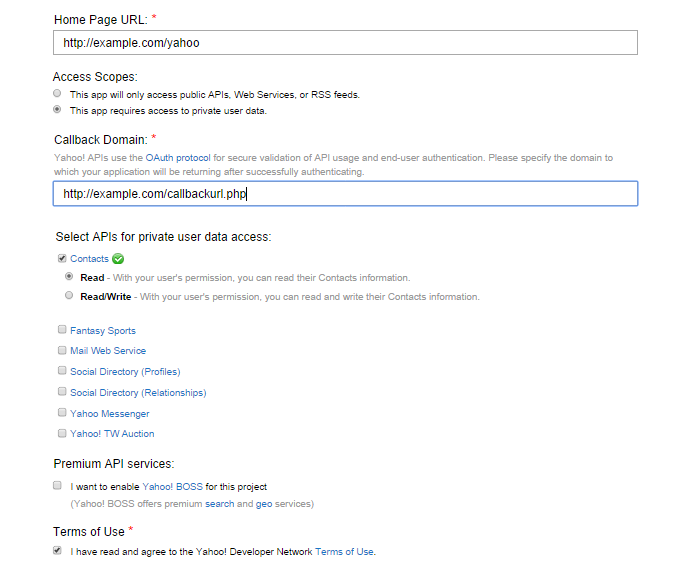
register your app

  • In Scope choose private data -> contacts and ur preferred options for your application


Choose private data -> contacts -> preferred read or write
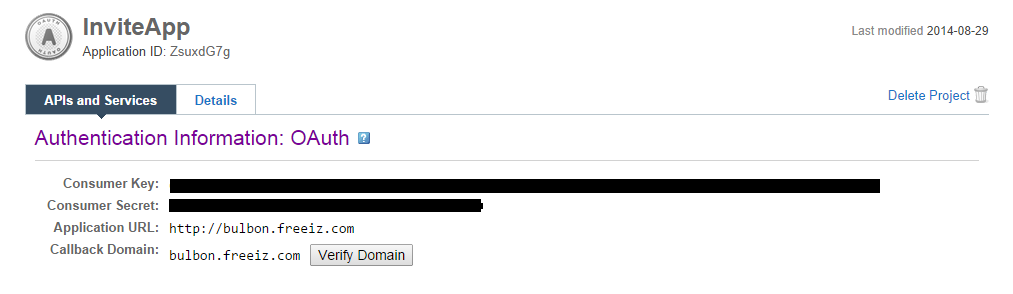
  • After Final Step is to verify your Domain by uploading a file to root of the website.
  • Get your Application ID, Consumer Key,Consumer Secret and Note your Domain is verified
    and you can add details about your app in Detail section too.
final app registered


Configuration :

Under index.php just we are adding our Application details and defining ,They are used to authenticate your application and provide you the user data.
define('OAUTH_CONSUMER_KEY', 'ZZZZZZZZAAAAA');
define('OAUTH_CONSUMER_SECRET', 'AAAAAAAAA');
define('OAUTH_DOMAIN', 'mydomain.com');
define('OAUTH_APP_ID', 'APP_ID');

Authenticate The User :

Include the Yahoo library and lets make authenticate URL,we just need to pass a callback URL alone which can be defined ourself.And to maintain the Authentication flow A Javascript is introduced for User convenience , A popup for authentication and loading the page once again for API calls and fetching user data.So , We have user in_popup in our Callback url to know that the user has authenticated and to reload the page

YahooSession is a predefined class with member function to create authurl for our application by passing our key,secret and callback url

  $callback = "http://bulbon.freeiz.com/shivasurya/invite/yahoo/sample/sampleapp.php?in_popup";

  // this URL will be used for the pop-up.

  $auth_url = YahooSession::createAuthorizationUrl(OAUTH_CONSUMER_KEY, OAUTH_CONSUMER_SECRET, $callback);


place the $auth_url in the form of Login with Yahoo link button.

Checking for Session : 

There are two type of function to easily manage session in our application.
  1. hasSession method is used to check the web app has previous any session and this is used to determine to login once again with a popup.
  2. requireSession method is to generate a session for us/fetch session existing one and our session data consist of the profile of the user.

$hasSession = YahooSession::hasSession(OAUTH_CONSUMER_KEY, OAUTH_CONSUMER_SECRET, OAUTH_APP_ID);

$session_new = YahooSession::requireSession(OAUTH_CONSUMER_KEY, OAUTH_CONSUMER_SECRET, OAUTH_APP_ID);

Loading user Data and Displaying Details :

So,by using the above methods we could check the existing session or request to create new session and we could load the user profile data in our web application.


if($session_check) {
    $user = $session->getSessionedUser();
  // Load the profile for the current user.
    $profile = $user->getProfile();
  }
try to var_dump the $profile array to see whole data of User who logined in to web application.For full code download and have a try in your Domain.i am leaving in your part for exception handling and checking sessions and showing login button to the users in your application.

Note : For using Yahoo API , Your domain must be verified[file upload in root directory] and above code runs in popup for authentication purpose ,enable your popups!


For Errors/comments/bugs and suggestions use comments or contact me s.shivasurya@gmail.com or connect with me via Facebook/Twitter.Share is care.

Thursday, 28 August 2014

Creating A Simple RESTful Web Service using Express Node.js - JSON Data for Different Platforms (Part - 1/2)

As Every Day Device Shrinks and the way how it is connected to the Server to pull data and Append data becomes complex.Here is the solution for that because usually Network related application are data driven applications,where data is the king and we could make up something as we need .JSON data - Javascript Object Notified which is considered to be Light weight data for data sharing between two platforms or systems.where XML is also used,but JSON is preferable for mobile applications to pull data easily via AJAX JQuery with cross origin request.API is common term where in web apps are data driven application,Data is used to build apps which paves a way to create Application Programs with those data.


Creating A Simple RESTful Web Service using Express Node.js - JSON Data for Different Platforms (Part - 1/2)
Download :  Download Demo

The Main Aim of Creating such Rest API Web Service is to share the data between application where we could create apps that can reach a huge peoples!


There are lot of standards in REST API building to prevent attacks,scaling and illegal requests.To prevent that we could add APP ID and Secret token basically (BASIC).Oauth2 standards would have such process


  • The Specific Application is registered with APP id and Secret key and may be where the origin request is arises and handled.
  • Provide appId and Secret Key for Application.where the app developer just pass them via Header
  • [may be sometimes they have permissions if it is a Big Company like Facebook,Google,Twitter
  • And Action to be perform is passed via Body part with data to be processed.
  • Return Success/Error messages with Data to application in JSON/XML format
The above steps are basic simple but there are lot of methods to be followed for full Fledged API platform to run with performance.

Scope:

My Application will pull data from Server which is managed by Node.js as Backend Server Responding the Requests!

Warning:

  • This is just Basic Model Of pulling data from server to display at cross platform application.
  • I haven't enabled any HMAC Security and any other securing features to authenticate.
  • I am using Express Framework 4.x.x version since it is handy for me.
  • I am versioning the API via URL for my easiness.There are lot of controversies in this versioning API via URL/or body part!

Node.js Express Backend:


First of All let me Create a Simple routes that can respond with JSON format data and accepting inputs via body and headers.

package.json

{
"name":"SampleRestAPI",
"description":"Basic Web Service",
"version":"0.0.1",
"private":true,
"dependencies": {
              "express": "~4.x.x",
               "body-parser": "*",
              "mongoose": "~3.8.11"
  }
}

server.js:


Important part is to create routes for your application and which can determine to give away resource! Rest API is meant for that! Asking for resource via HTTP methods. :)
simple examples of creating routes for ur application:


app.get("/",function(req,res)
{
      //get movies list data
});
app.post("/year",function(req,res)
{
        //filter year wise result movie
});
app.post("/create",function(req,res)
{
      //create new movie in Database
});
app.put("/update",function(req,res)
{
     //update certain part of the object(movie)
}
app.delete("/delete",function(req,res)
{
     //delete object(movie)
}


So,from the above Routes created , you may get some idea to build yours,there are lot of techniques in routing in express,if you can manage it apply and make it,others simply you can use and further learn more about creating complex application routes[Express 3.x.x] version
And Finally respond your client with the JSON data appropriately using res.json method

Creating Database for Back End Data Handling With MODULUS.io:


Since we are going to handle a considerable amount of Data lets have simple schema holding recent film,2014 films and love.horror movies in single schema document with sub-document.


Create A account in modulus.io for free Mongoose Database hosting.It is actually free but we wont use it upto such extent! :)


  • Create An account with your email account
  • Create New -> Database service
  • Select preferred Hosting such as Amazon/Joyent
  • and give Database Name , here Database Username/Password is very important.
  • After creating they will provide a URL to connect to your database

mongodb://<username>:<password>@proximus.modulusmongo.net:27017/zzzzzzz


The Above GIven URL is for example ,you may get different Domain ,Port number and Database unique ID


database.js :


Sample DB from modulus.io
This is created for connecting your schema to Hosted DB and transferring of Data from application to Database and reverse to :)


 module.exports = {'url' : 'mongodb://<username>:<password>@proximus.modulusmongo.net:27017/zzzzzz};

server.js Additional to Routes :

Let me explain the logic of Database query here,Btw we connected to mongoose db with url connect() using the url.


  1. GET /  -  This route is used to request whole movie database with native function find() without passing any params and return type to client as JSON Format
  2. POST /create - this route is used to create new movie object and append to database and return user with unique id for the insert
  3. PUT /update - this route is used to update a movie by passing _id and necessary details to update.here findbyIdandupdate function is used to find id and update simultaneously.
  4. DELETE /delete - this route is used to delete a movie by passing a id and remove function is used to delete from our database
  5. POST /year - this route is used to search for particular year movie details using find() function and return as JSON[this can be done using GET method by passing params in url]


model.js:

var mongoose = require('mongoose');
var movie_api = mongoose.Schema({
    movie          : {
        name       : String,
        year         : String,
        director   : String,
        genre       : String,
        thumb      : String ,
        music       : String,
        rating       : Number ,
    }

});

//you can have methods here 
module.exports = mongoose.model('movie', movie_api);


Thus in Above model.js we have defined our database schema and how we are going to organize our data in mongoose database.


My Try over API from REST CLIENT :

Download the REST API Client from here. abd have a try.


  • Download the files and extract
  • execute npm install
  • run server.js file
  • try the API URL from client addons
  • report for errors/bugs s.shivasurya@gmail.com 

REST ADVANCED CLIENT CHROME ADDON - A try over my API


Note : I haven't validated any data from user and retrieve from DB.This is basic app for RESTful Webservice and not suitable for production mode.

Try the Demo files in your localhost/node.js hosting.if any error/suggestion/bug do comments below or mail me s.shivasurya@gmail.com or connect with me in FB/Twitter for help and other sorts.Share is care

Thursday, 21 August 2014

Working With File-Encryptor Node.js Module - Encrypt and Decrypt your Files OpenSSL

I love Encryption/Decryption a Lot in Javascript ! And I have Already written article on JavaScript Crypto.JS Library and got many Responses/Doubts.And So recently I have Been working on a Small Node.JS project for File Management System in Cloud , I have Been using this File-Encryptor module for my Use.And i didn't see Any Successful Blog post guiding for this Encryption/Decryption File Module in Node.js.


Working With File-Encryptor Node.js Module - Encrypt and Decrypt your Files OpenSSL
Reference :   Download Demo


Installation:

>npm install file-encryptor 

Requirements: 

Procedure :

Require File encryptor and path for our Application.


 var encryptor = require('file-encryptor');
 var path = require("path");


Encrypting File : 

Encrypting the File is easy,Just invoking the function lets you to Encrypt as DAT file in directory.Using the FileSystem Module we could normalize our directory 


var key = 'My KEY For Encryption';
var input = __dirname+'/../private/file.txt';
var output = __dirname+'/../private/filename.dat';
encryptor.encryptFile(input, output, key,options, function(err) {
                if (err)
                  throw err;
         console.log("Successfully Encrypted!");
                   
});


Decrypting File :

var key = 'My KEY For Encryption';
var input = __dirname+'/../private/filename.dat';
var output = __dirname+'/../private/file.txt';
encryptor.decryptFile(input, output, key,options, function(err) {
                if (err)
                  throw err;
         console.log("Successfully Decrypted!");
                   
});


Options : 

Before trying Just Install OpenSSL in your System to and Make it Available via Commandline [Set Path]
Now Try openssl list it in your command Prompt and verify your Preferred Algorithm is installed.by default this module does aes192 if your not passing option as argument in function.

var options = { algorithm: 'Your Openssl Encryption Algorithm' };

var options = { algorithm : 'aes256' };


Basic Application :

Package.json


{
  "name": "node-encryption",
  "main": "server.js",
  "version" : "0.0.1",
  "dependencies" : {
    "express" : "~3.4.4",
    "file-encyptor" : "*",
}
}


Server.js:
Try out this simple node application by creating private directory in your project folder and create filename.txt and try encryption first and then followed by decryption.


var http = require("http");
var express = require("express");
var app = express();
var encryptor = require('file-encryptor');
var path = require("path");

app.get("/encrypt",function(req,res){

   var key = 'My Secret Key';
   var input = path.resolve(__dirname+'/../private/filename.txt');
   var output = path.resolve(__dirname+'/../private/tmp/file.dat');
    var option = { algorithm : 'aes256' };
   encryptor.encryptFile(input, output, key,options, function(err) {
      
        res.download(output);   });

});
app.get("/decrypt",function(req,res){
       
   var key = 'My Secret Key';
   var output = path.resolve(__dirname+'/../private/filename.txt');
   var input = path.resolve(__dirname+'/../private/tmp/file.dat');
    var option = { algorithm : 'aes256' };
   encryptor.decryptFile(input, output, key,options, function(err) {
      
        res.download(output);  

 });  //end of decryptor function 


});

http.createServer(app).listen(3000);
console.log('Application Started now ');


For dynamic advanced application you can temporarily create filename unique manner and assign to create encrypted file in your directory.you can make use of tmp npm module.
try out with different algorithm for encryption/Decryption.I have used aes128/aes256/aes192 for my project.I am leaving in your hand for filename generations and applying it.

If you can find any errors/bugs/issues/suggections in my Demo/Post just comment below!lets resolve it.
For Errors/Comments and more details lets discuss below or mail me s.shivasurya@gmail.com or connect with me in Facebook/Twitter.Share is care.

Monday, 18 August 2014

Run Android Apps on PC Desktop with Windroy - i-visionblog by @nancy.joslin

We have many software like BlueStacks ,youwave,genemotion,andy to run android apps on pc. We can also use another emulator - WINDROY. It is a freeware android running with windows. It is the easiest and fasted way to run all android apps and games including 3D games on your pc along with windows.The present version is android 4.0.3 and new versions are being developed.Note that if you have Eclipse installed in your system you can run any type of Android OS with emulator from Google and with custom settings from your preferred companies like samsung,SONY too.


Scope :

This Article Enables you to run Android application on Windows Desktop [PC]

Specifications : 
It provides
  • ·         Android version 4.0.3.
  • ·         Runs on windows vista, 7, and 8.
  • ·         Supports any UI resolution.
  • ·         Supports Ethernet and PPPoE (Point-to-Point Protocol over Ethernet). 
  • ·         Gives the user the original experience of android device.
  • ·         Input devices are mouse and keyboard so easy to work with.

You can download Windroy from this link 
Install it.
Then open, you will one like this on your pc, starting may take several minutes.

Check the android version in settings>About phone.
Then check mark the ‘unknown sources’ in security >device administration.


To open android app, use one of the following methods. 
      
  • Go to the windroy location on your pc then open windroy_root>system>app Copy and paste your apk file then restart windroy from the beginning you will find your apk on that screen.
  • Go to the windroy location ,then open windroy_root>data>app.Then do the same as did before for first method.       

If this both didn’t work download android market such as mobogenie in windroy. Search your favorite app then download it and install. Now your app can be opened without any conflicts. Google play cannot be used.

Now go test all your android apps on your pc itself.Enjoy apps on PC!

Author :
Nancy Joslin , INDIA studies Computer Science engineering and loves to write technical articles on Android, and other amazing emerging technologies in i-visionblog.

Feel free to comment below to point out errors/bugs/experience.Willing to write posts in our blog join with us - contact me - s.shivasurya@gmail.com and connect with Fb/Twitter

Note that try this on your own risk on your pc,using android emulators on windows with caution.i-visionblog is no way responsible for damages by software.here by we just promote and introduce features that we had run for test purpose in our systems for development.

Wednesday, 13 August 2014

Deploy Node.js Application on Openshift Hybrid Cloud - i-visionblog

Nowadays Developers/End users prefer cloud services for their Usage,Storage and Demanding service in one clicks either using credit cards for paying the usage.Business start ups / Developers prefer to host their applications on cloud public for users access, and to manage a huge data ,analyse by powerful cloud machines provided by cloud service providers.Where Business peoples/Developers and others can forget their Hardware specifications and start involving in the Application designs and management.Cloud plays important part in business side data/analytics handling!


Deploy Node.js Application on Openshift Hybrid Cloud - i-visionblog

Article About Cloud at i-visionblog : 

  1. What is Cloud Computing ?  - A Good Explanation for Easy Understanding with Video.
  2. Deploy PHP application - Heroku Cloud [ free untill you add add-ons]
  3. Deploy PHP application+IBM Bluemix Cloud [free trial Period ]
  4. Deploy Node.js Application+IBM Bluemix Cloud Foundry
  5. Deploy Mobile Application DataStore online - Parse.com [ Free for Personal apps ]

Scope : 

Here You can develop a simple Node.js Application at Localhost and make it as deployable at Openshift(Red Hat) .

Installation : (Windows Machine ) :

  • Download GIT command line and make sure accessible via command Line [ git --version  must output with version number] click here to download.
  • Download Ruby Installer [ Stable version ] from here Must be accessible via command line.
  • once all goes well do  C:\> gem install rhc  Must Install you with RHC Client for windows.
  • Go to Red Hat Openshift Website and create a Account & then  Create a Domain name.  
This is Enough to Deploy your app in minutes from desktop.however Mac,Linux others can follow deploy process which is same since Git is Standard.Installation can differ.

RHC Setup :

 C:\ >  rhc setup 

It may prompt you for Adding server host ! Just Skip it by Pressing Enter key.you can add it later too.
Then It may ask you to login with openshift account online emailID and Password in CMD if you're doing it first time.
And allow to add a Private SSH file for authentication purpose - RSA public key adding it permanently on you command line for 30 days life time.Enter "yes" to accept and proceed.

Creating Application :

 I would Generally appreciate you to Go to Openshift website to have Overview of application present.
There are lot of application present to be installed.
  • Add Node.js Application by clicking add application
  • Name your application [ Note that you must have added Domain Name already after sign up ]
  • And Add a custom Url for your application - [ can be changed if you have DNS records ]
  • Git repo is optional here 
  • If you want to scale application for more users,Do load balancing here- [note if you have database in application make sure it is shared across application on different instance shares it]
  • Create Application and Get the Source url starting with SSH:// on console application page
Adding Source :
adding source to application !
  • C:\ > git clone [copy the SSH:// URL here ]
  • This would initialize your application directory for Deploying.
  • Copy your Application Folders/Files with package.json and server.js [server.js name is mandatory to start your application ]
Changes in server.js:

Your Localhost is not equivalent to Cloud Setup so, you must provide ip and Port variable to run your application on cloud.And make sure port,ip should be same as Below for any type of Node.js 

var port = process.env.OPENSHIFT_NODEJS_PORT || 8080;
var ip = process.env.OPENSHIFT_NODEJS_IP || "127.0.0.1";

and At last while making the application to listen to given port,ip

server.listen(port,ip);

A sample of Server.js file :


Thats All just move in to your Directory through Command Prompt .execute three commands succesive manner and deploy your application.For updating application just follow these three commands one by one.

  • C:\ > git add .
  • C:\> git commit -am "initial commit"
  • C:\> git push origin master 
Debug & Logs :

  • just type  C:\> rhc tail <app_name>
will provide you ongoing Requests / Errors in the Node Applications .

Thus we have Successfully Deployed First Node.js Application on Openshift Hybrid Cloud.Openshift is Free to have Three application with Scalable Application , Https Connection access and also more add-ons With Limited three Gears each Application & 1 GB space.Have a try ! be cautious before adding Credit cards because it may cost you for overusage!.

Report for Error/Suggestions as Comments or mail me s.shivasurya@gmail.com / or connect with me in Facebook/Twitter.Enjoyed the Posts,Share is care and Do comments!